
You’ve set up your Google Shopping campaign, your product feed is approved, and clicks are coming in. But conversions from Shopping ads are lagging behind your regular site traffic, and you can’t figure out why. There’s a decent chance the answer isn’t your bid strategy or your product images — it’s your delivery information.
Most WooCommerce store owners treat delivery estimates as a product-page feature and Google Merchant Center as a completely separate system. They’re not separate. Google increasingly uses your shipping and delivery data to decide how your ads look, whether they get flagged, and whether shoppers trust the click enough to buy. This guide walks through exactly where the two connect, and what to fix if they don’t.
Why Google Cares About Your Delivery Estimates
Google Merchant Center collects shipping data through your product feed — specifically handling time (how long before an order ships) and transit time (how long the carrier takes once it’s shipped). Together, these two numbers are exactly what an estimated delivery date plugin calculates on your storefront.
When this data is filled in correctly, Google can show an estimated delivery date directly on your Shopping ad or free listing — something close to “Get it by Thursday.” That badge is a trust signal at the exact moment a shopper is comparing you against competitors in the ad grid, before they’ve even landed on your site.
| 🚧 IMPORTANT If your feed’s handling and transit time don’t match what your site actually shows — or what you actually deliver — Google can flag the listing during review, and shoppers who click through will notice the mismatch immediately. Inconsistent delivery data hurts you twice: once in the ad, once in the bounce. |
The Consistency Problem: Feed vs. Storefront
Here’s the thing: most stores calculate delivery estimates in one place (a plugin on the storefront) and enter shipping times in a completely different place (the Merchant Center feed), by hand, once, and never again. The two numbers drift apart the moment your fulfilment schedule changes.
If QuickShipD is showing “Get it Thu, May 14 – Mon, May 18” on your product page, that window comes directly from your configured minimum and maximum delivery days. Your Merchant Center handling and transit time settings should produce the same window. If they don’t, you have two different promises live at the same time — one in the ad, one on the page.
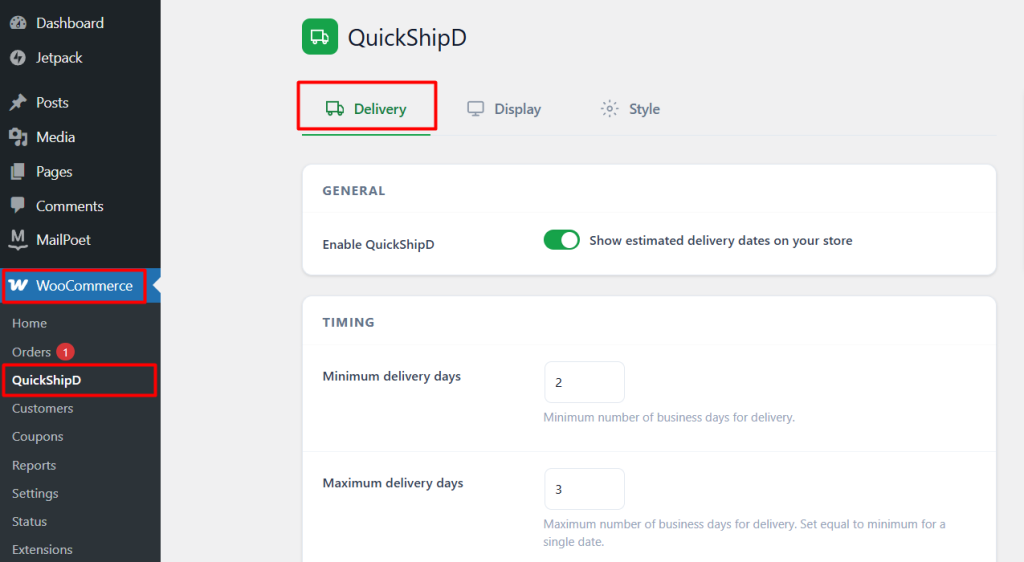
| 💡 PRO TIP Treat your delivery estimate settings as the single source of truth. Whatever minimum/maximum delivery days and cutoff time you’ve configured for your storefront, use those exact numbers when filling in handling and transit time in Merchant Center — don’t estimate twice. |
One Thing QuickShipD Won’t Do For You
QuickShipD calculates and displays delivery estimates on your storefront — product pages, cart, checkout, shop pages. It doesn’t push that data into your Google Merchant Center feed automatically; that’s a separate system Google controls, and no on-site plugin can write to it directly.
What it does give you is the accurate, real-world numbers to enter on the Merchant Center side. Once your Delivery tab reflects your actual minimum and maximum delivery days, cutoff time, and holidays, transferring those same figures into your feed settings takes a few minutes — and keeps both channels telling shoppers the same story.
How to Check If Your Delivery Data Is Working Against You
- Check Merchant Center diagnostics: look for shipping-related warnings or disapprovals under the Products → Diagnostics tab
- Compare feed vs. site side by side: open a product’s Shopping ad and the same product page in another tab — do the delivery windows match?
- Re-check after schedule changes: any time you adjust your cutoff time or add holidays in QuickShipD, update Merchant Center the same day
Getting this right isn’t a one-time task — it’s a habit. But it’s a five-minute habit, not a technical overhaul, and it closes a gap that’s easy to miss.
Getting Both Channels to Agree
Delivery estimates were never just a product-page nicety — they’re part of how Google decides what to show shoppers before they ever click. Now you know exactly where your storefront and your ad feed need to agree, and where to check first if something’s off.
QuickShipD gives you the accurate, real-time numbers on the storefront side — the same numbers you’ll want reflected in Merchant Center. Set your Delivery tab up once, and you’ve got a reliable source of truth for both.