
Custom and made-to-order products present a specific challenge for delivery estimates: the production time before shipping varies, sometimes significantly. A stock item can show the same estimate every day. A handmade piece, a personalised gift, or a bespoke product has a variable lead time that needs to be reflected honestly in whatever you show the customer.
Why Standard Delivery Settings Don’t Work for Custom Products
If you configure a global delivery estimate of 3–5 days for your WooCommerce store and you also sell custom products that take 7–10 days to make before shipping, your global setting will show the wrong estimate for every custom item. Customers will expect delivery in less than a week and receive it in two — not a recipe for good reviews.
The fix is per-product delivery day overrides, which let you assign a different delivery window to specific products without changing your store-wide settings.
Setting Per-Product Delivery Days in WooCommerce
In WooCommerce, open the product you want to configure. In the Product data panel at the bottom of the edit screen, click the Shipping tab. You’ll find a QuickShipD section with three options:
- Disable delivery estimate: A checkbox to hide the delivery estimate entirely for this product — useful for items where delivery time genuinely can’t be calculated in advance, like fully bespoke commissions
- Min delivery days: The earliest this specific product can arrive after ordering, accounting for production time plus transit
- Max delivery days: The longest realistic delivery window for this product
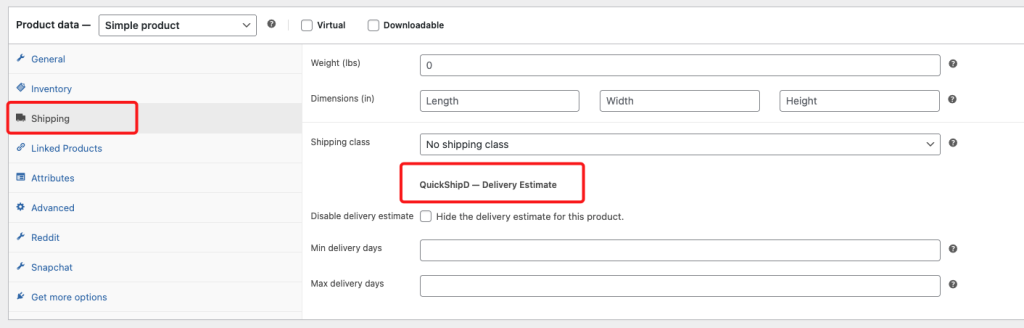
These override your global settings for this product only. Your stock items continue to show the standard estimate; your custom items show the appropriate extended window.
How to Calculate the Right Numbers
For a custom product, your delivery estimate should reflect: your average production time + your carrier’s transit time. If a personalised item takes 5 business days to make and 3 days to ship, your minimum is 8 days and your maximum might be 12 if there’s variability in production.
Be honest rather than optimistic. A customer who orders a custom item knowing it takes 10–14 days is a satisfied customer. A customer who ordered expecting 5 days and received it in 12 is an unhappy one — even if your craftsmanship is exceptional.
When to Hide the Estimate Instead
Some genuinely bespoke products — where the timeline depends on a consultation, material availability, or approval process — can’t be estimated until after the order is placed. In these cases, use the ‘Disable delivery estimate’ option and instead communicate the timeline in your product description or post-purchase confirmation.
| PRO TIP For made-to-order products, use slightly conservative estimates. When customers receive their custom order a day or two before the end of the estimated window, they feel the product arrived early. That positive surprise is particularly powerful for custom items where the customer has been anticipating their specific piece. |
Per-product overrides let you run a mixed inventory — stock items with quick estimates and custom items with honest production windows — from a single, clean plugin configuration.