
It’s reasonable to want to know what actually changes before you spend time setting something up. “It improves conversion” is the kind of claim that’s easy to make and hard to picture. Here’s a concrete, illustrative walkthrough of what typically changes on a product page, in a support inbox, and at checkout once an accurate delivery estimate is added — without invented statistics standing in for your own results.
Your specific numbers will depend on your store, audience, and product mix. What follows is the pattern, not a guarantee.
Before: The Product Page Answers Fewer Questions
Without a delivery estimate, a product page typically answers what the item is, what it costs, and maybe how many are in stock. It doesn’t answer when the customer will actually have it — which means anyone who cares about timing has to guess, or leave to find out elsewhere.
After: The Same Page Answers the Timing Question Too
With QuickShipD configured, the same page now shows a calculated window — “Get it Thu, May 14 – Mon, May 18” — directly below the price. Nothing else about the page changed; the product, price, and images are identical. The only difference is one more piece of information answered before the customer has to ask.

| 🎯 NOTE This is a description of what the feature adds, not a promise of a specific conversion lift. Whether and how much this affects your numbers depends on your audience, your product, and how accurate the estimate is. |
Before and After: The Cart and Checkout Experience
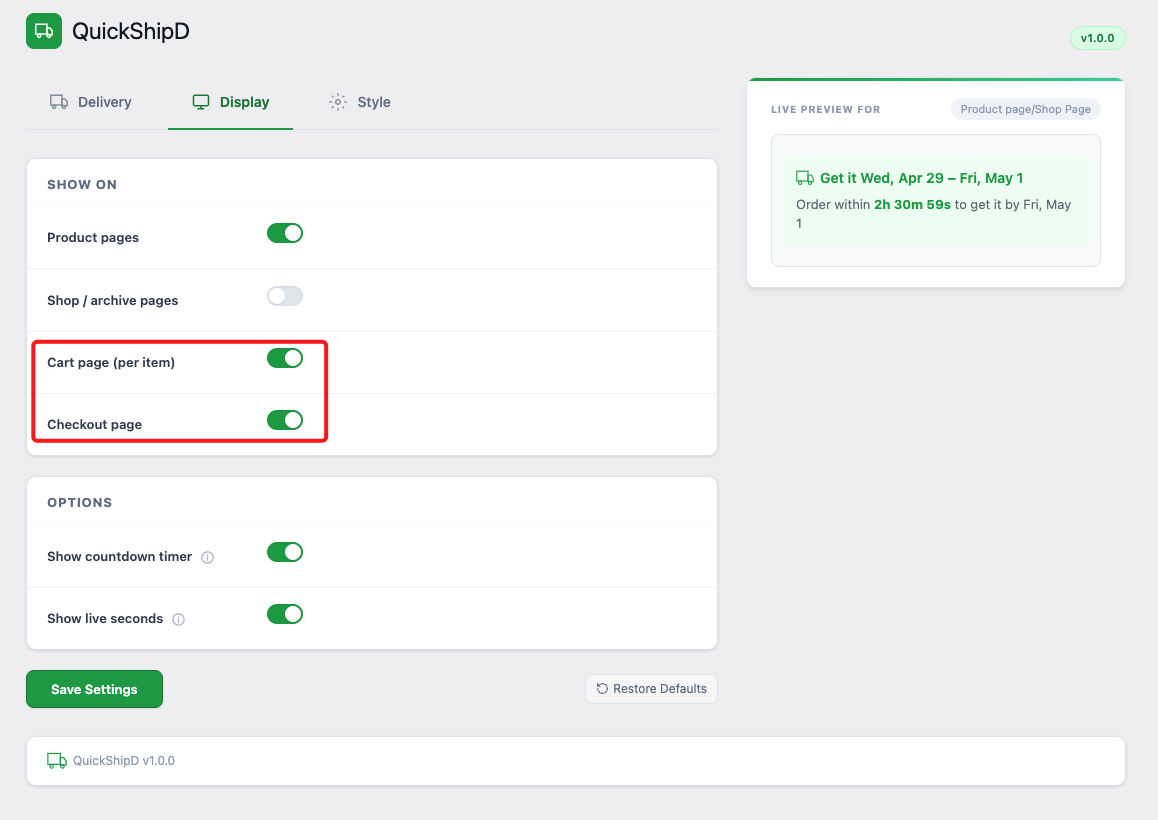
Before, a customer who added an item to their cart had no reminder of timing until they reached a shipping method selection at checkout, if at all. After, the same estimate that appeared on the product page can reappear in the cart, reinforcing the same information rather than making the customer recall or re-check it.
Before and After: What Support Sees
Before, a customer with no visible delivery reference point has one obvious way to find out where things stand: ask support. After, the same information is sitting on the order confirmation and the product page they originally bought from, which removes at least one common reason to write in.
| 💡 PRO TIP Track your own before-and-after by checking your support ticket volume specifically tagged as delivery timing questions, for a few weeks before and after adding the estimate. That’s a more meaningful comparison than any generic statistic. |
One New Answer, Same Page
The before-and-after here isn’t dramatic in terms of design — it’s the same product page with one more question answered. Whether that translates into a measurable lift for your store is worth tracking yourself rather than assuming a generic number applies.
QuickShipD adds that one answer automatically, calculated from your real delivery schedule.