
If you’ve ever lost a sale to Amazon, the reason probably isn’t price. It’s certainty. Amazon shows ‘Get it tomorrow‘ before the customer even adds something to their cart. Your WooCommerce store shows nothing and uncertainty kills conversions.
By downloading QuickshipD WordPress plugin for WooCommerce Estimated Delivery Date, you can add delivery date in WooCommerce products, Checkout page, and cart.
There are two routes. You can write the logic yourself in your child theme’s functions.php, which costs nothing and gives you complete control over the output. Or you can use a plugin and skip the maintenance. This guide covers both — the code method first, because you should know what you are replacing before you install anything.
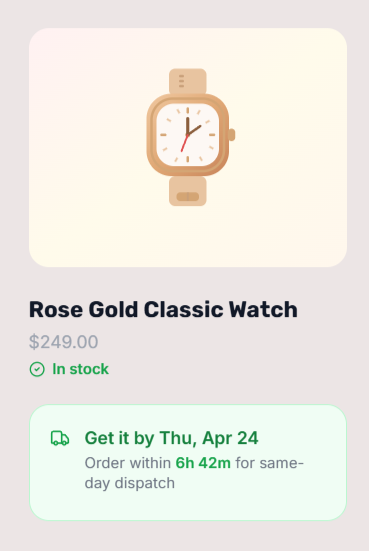
Why WooCommerce Doesn’t Show Delivery Dates by Default
WooCommerce handles payments, products, and orders well – but it was never built to calculate or display delivery timelines. Out of the box, customers see a shipping method and a price. They have no idea when to expect their package.
This creates a trust gap. Shoppers fill that gap with doubt, and doubt leads to abandoned carts. Studies consistently show that unexpected shipping information at checkout is one of the top three reasons customers don’t complete a purchase.
What You Actually Need to Show Delivery Dates
To display accurate delivery estimates, your store needs to account for three things:
- Processing time — how long it takes to prepare and dispatch an order after it’s placed
- Shipping transit time — how many days the carrier takes to deliver once the order has shipped
- Non-delivery days — weekends, public holidays, and days your warehouse doesn’t operate
Most solutions only account for transit time. That’s why delivery dates are often wrong — they ignore the gap between ‘order placed’ and ‘order shipped’.
Option A: Add a delivery date with a plugin
If you would rather not own that maintenance, the QuickShipD estimated delivery date plugin covers the same ground from a settings screen. You configure your minimum and maximum delivery days, set an order cutoff time, tell it which days you don’t ship, and it automatically calculates and displays accurate delivery windows across your store — on product pages, shop pages, the cart, and checkout.
The setup takes about five minutes. You go to the Delivery tab, enter your minimum and maximum delivery days, set your daily cutoff time (the point after which same-day dispatch is no longer possible), toggle off weekends if you don’t ship on those days, and save. QuickShipD handles the rest calculating dates in real time and displaying them wherever your customers need to see them.
Step 1: Install QuickShipD
- Go to your WordPress dashboard → Plugins → Add New
- Search for QuickShipD
- Click Install Now, then Activate
That’s it. The plugin is now ready.
Step 2: Set Your Delivery Schedule
Go to:
WooCommerce → QuickShipD → Delivery tab
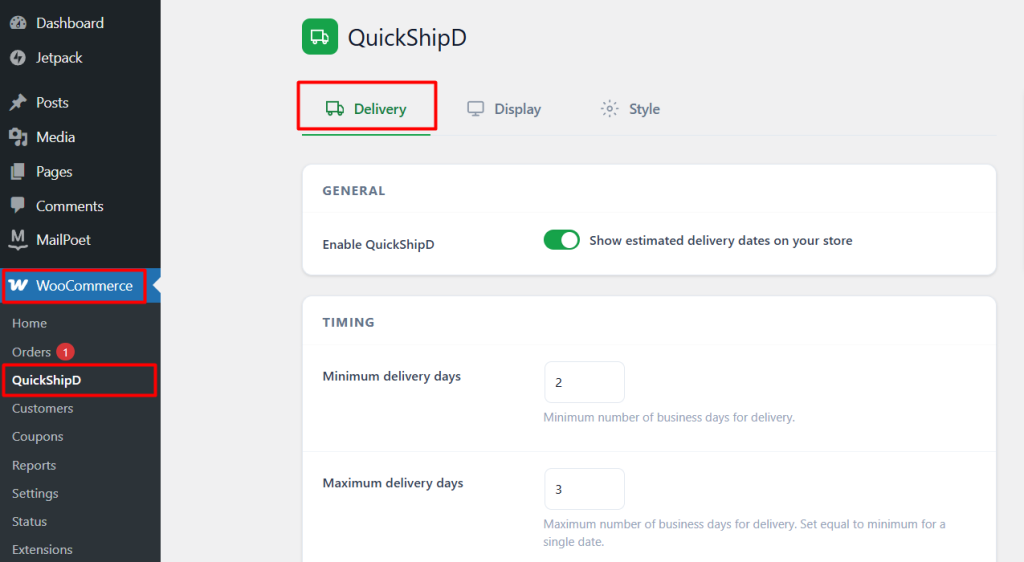
Here’s what to configure:
Minimum and Maximum Delivery Days
Set how long delivery takes.
Example:
- Min: 2 days
- Max: 3 days
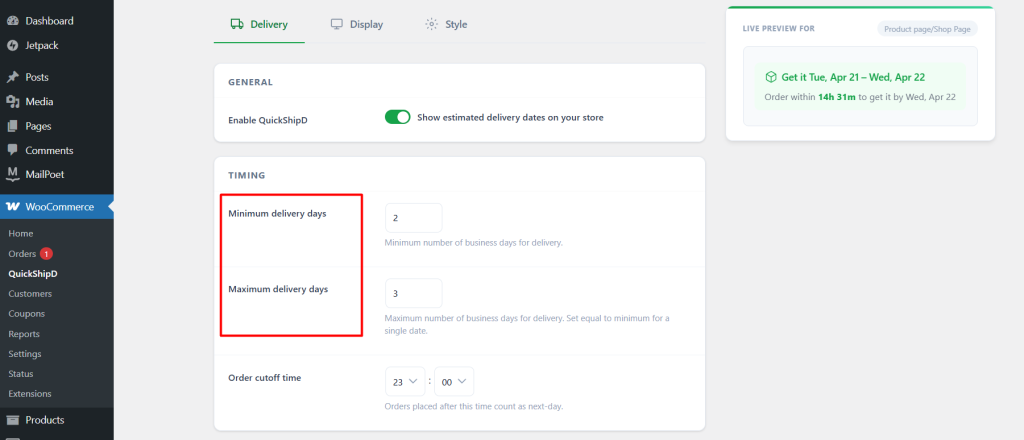
This will show:
“Get it Tue, Apr 22 – Wed, Apr 23”
This range gives you a realistic buffer instead of promising an exact date.
Order Cutoff Time
Set the time after which orders are processed the next day.
Example:
- Cutoff: 19:00 (7 PM)
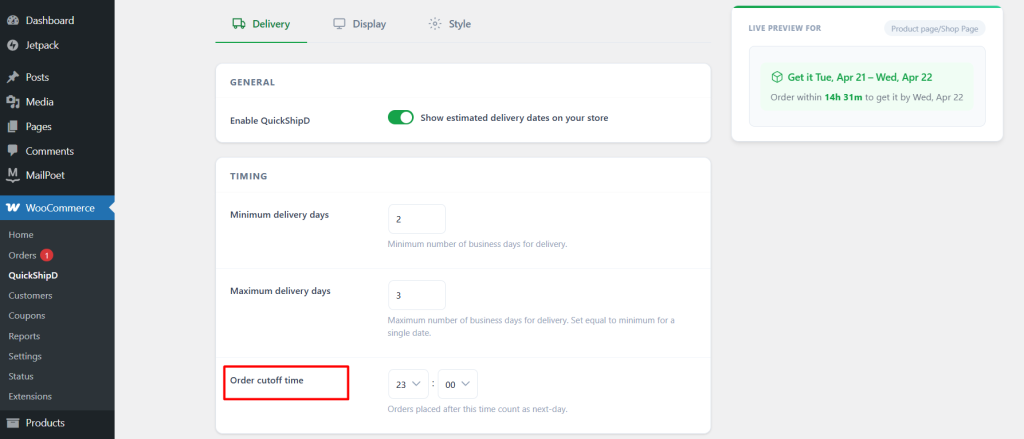
This ensures your delivery estimates stay accurate and your countdown timer reflects real operations.
Non-Delivery Days and Holidays
- Disable days you don’t ship (like weekends)
- Add holidays using recurring format (e.g. XXXX-12-25)
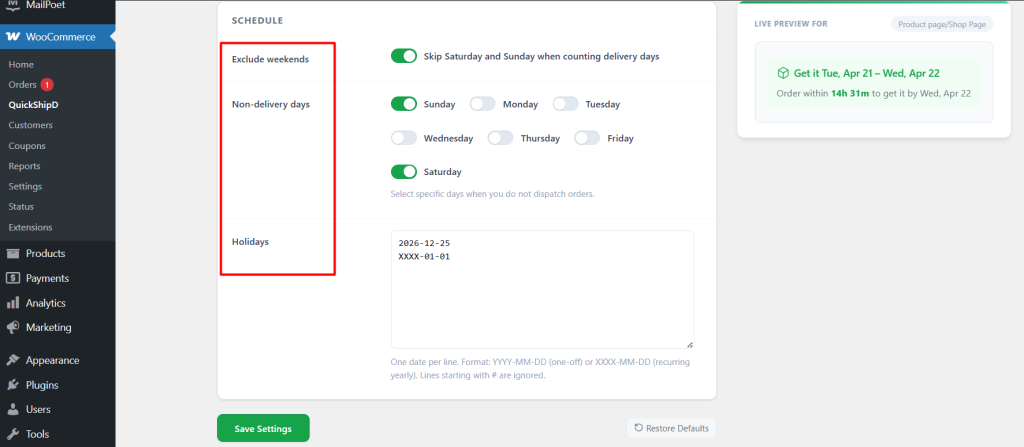
The plugin will automatically skip these days when calculating delivery dates. This is the settings-screen equivalent of the holiday logic the code snippet above deliberately leaves out.
At this point, your store knows your actual shipping schedule.
Step 3: Choose Where Delivery Dates Appear
Go to the Display tab
Enable delivery dates on:
- Product pages → shown before Add to Cart
- Cart page → visible per item
- Checkout page → reinforces at final step
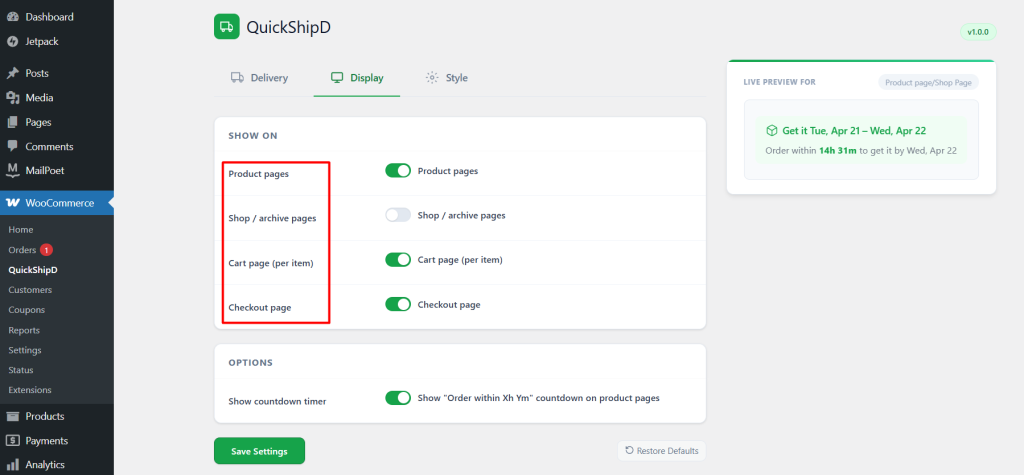
Also enable:
- Countdown timer → shows “Order within Xh Ym”
✅ Result: Delivery dates are now visible across your store.
Customers can clearly see when their order will arrive before they buy.
Step 4: Match It to Your Store’s Style
Go to the Style tab
Customize how delivery dates look:
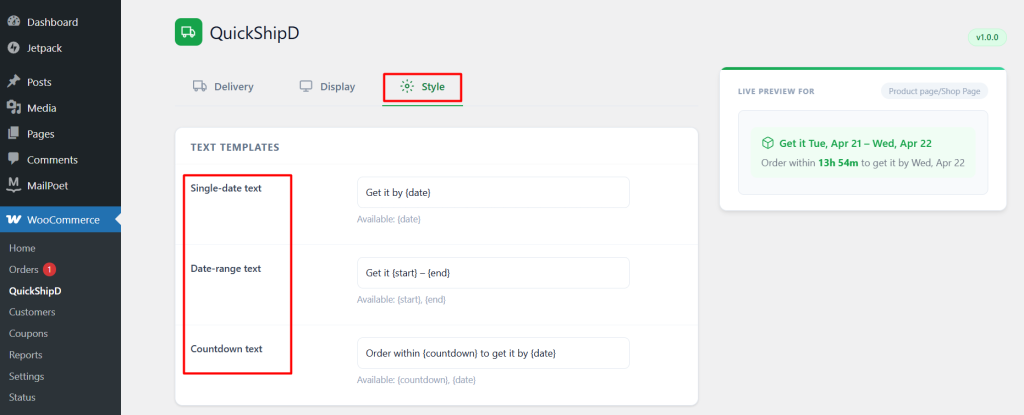
Text Template
Change wording to match your brand:
- “Get it by {date}”
- “Arrives between {start} and {end}”
Colors
Adjust:
- Primary text color
- Secondary text color
- Background
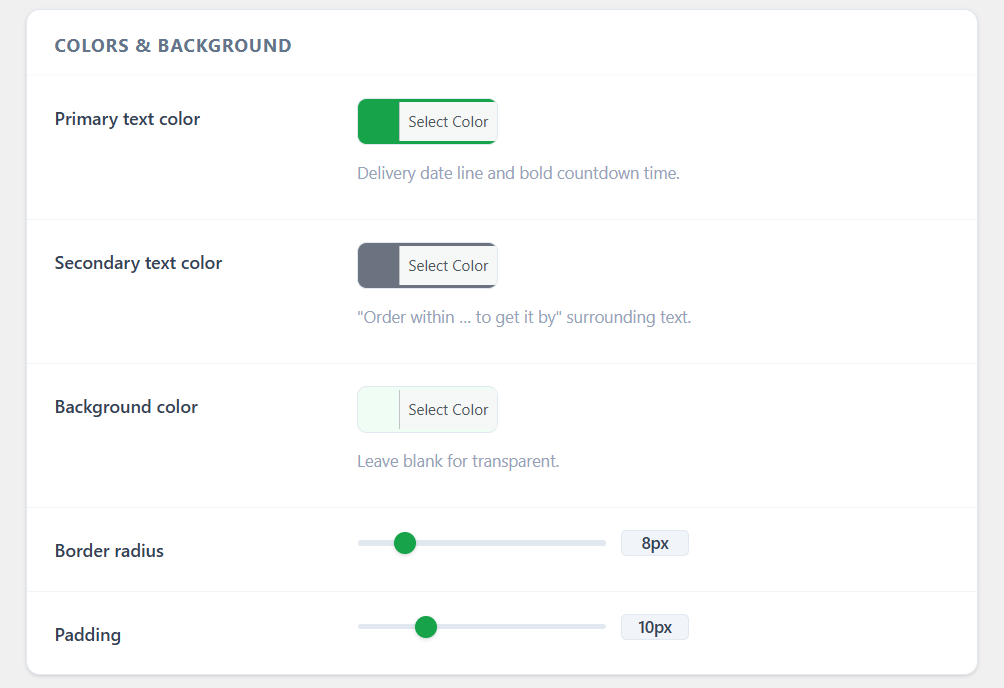
Make it blend naturally with your theme.
Date Format
Choose how dates display:
- “Wed, Apr 22”
- “22/04/2025”
- or your preferred format
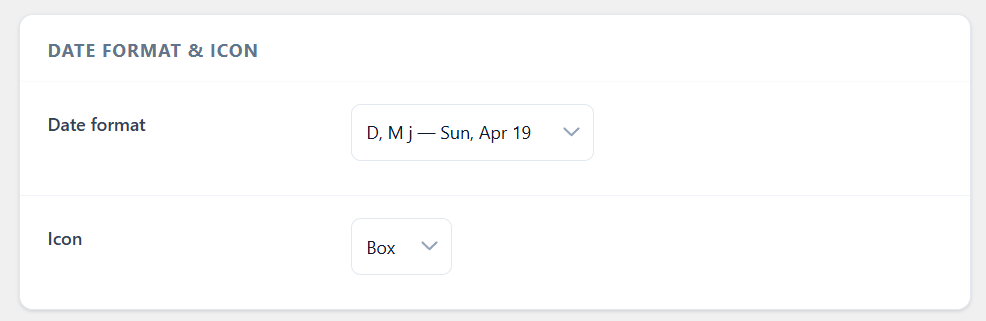
The live preview updates instantly, so you see exactly what customers will see.
What Your Customers See
Once everything is set up, your store will display:
- Clear delivery dates
- Real-time countdown timers
- Accurate estimates based on your schedule

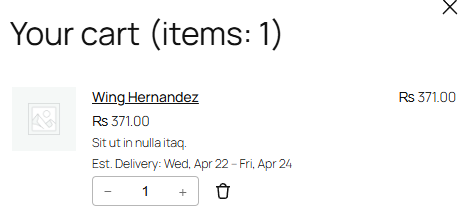
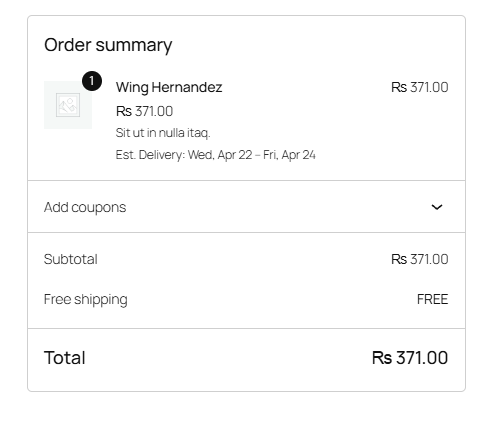
Instead of guessing, customers now know exactly when their order will arrive.
Option B: Add a delivery date with code
This is the no-plugin route. Add the following to your child theme’s functions.php (never the parent theme — a theme update will wipe it) or to a code snippets plugin. It appends a short “Arrives by” line to the product price, so the estimate appears wherever WooCommerce prints a price.
<?php
/**
 * Append a delivery estimate to the price on the shop and product pages.
 * Add to your child theme's functions.php.
 */
add_filter( 'woocommerce_get_price_html', 'qsd_price_html_delivery', 10, 2 );

function qsd_price_html_delivery( $price_html, $product ) {

	if ( is_admin() || ! $product->is_in_stock() ) {
		return $price_html;
	}

	$days = (int) get_post_meta( $product->get_id(), '_qsd_lead_days', true );

	if ( ! $days ) {
		$days = 3; // Store-wide default.
	}

	$date = new DateTime( 'now', wp_timezone() );
	$date->modify( "+{$days} weekdays" );

	return $price_html . sprintf(
		'<span class="qsd-eta">%s %s</span>',
		esc_html__( 'Arrives by', 'your-textdomain' ),
		esc_html( date_i18n( 'D, M j', $date->getTimestamp() ) )
	);
}
A few things worth understanding about this snippet:
"+N weekdays"is a native PHP relative-date format.DateTime::modify()understands it directly, so the calculation already skips Saturdays and Sundays for you. What it does not know is anything about public holidays — Christmas, Thanksgiving, or a local bank holiday will be counted as an ordinary working day unless you add that logic yourself._qsd_lead_daysis a per-product custom field. Add it to any product and that product overrides the store-wide default of 3 days. A made-to-order item can carry10while everything else falls back to the default, without touching the code again.woocommerce_get_price_htmlfires on archive and single templates. That is deliberate. Because the filter runs wherever WooCommerce renders a price, the estimate shows up in shop and category listings as well as on the single product page — not just at the point where the customer has already committed to clicking through.- It does not fire on the block-based cart or checkout. The Cart and Checkout blocks render prices through the Store API, not through
get_price_html(). If your store uses the block checkout, the estimate will be visible on product and shop pages and then silently disappear at the two steps where it matters most.
Edge cases this snippet does not handle
The snippet is genuinely fine for a simple store with one dispatch schedule and simple products. Here is where it stops being enough:
- Variable products. Each variation may ship from a different supplier on a different lead time, and on a variable product
get_price_html()returns a price range rather than a single price. Appending one estimate to that range is misleading at best. - Backorders and pre-orders. The
is_in_stock()check bails out on out-of-stock items, but a backorderable product still reports as purchasable — and its real arrival date depends on when your own restock lands, which the snippet has no way of knowing. - Local pickup. If the customer collects in store, no delivery date applies at all. Showing “Arrives by” next to a pickup-only product is simply wrong.
- Per-shipping-zone differences. A domestic order and an international one do not take the same number of days. The snippet applies one lead time to every customer regardless of where they are shipping to, because the price filter runs long before a shipping zone has been resolved.
- HPOS and block checkout compatibility. High-Performance Order Storage changes where order data lives, and the block-based cart and checkout ignore the classic template hooks entirely. Extending this snippet to cover either means registering a proper block integration — at which point you are maintaining a small plugin inside your theme.
Frequently asked questions
Do I need a plugin to show delivery dates in WooCommerce?
No. The functions.php snippet in Option A adds an “Arrives by” estimate to every product price without installing anything. A plugin becomes worth it once you need holiday exclusion, an order cutoff time, per-shipping-method windows, or support for the block-based cart and checkout — all of which the snippet leaves to you.
Where does the delivery date appear on my store?
With the code method, wherever WooCommerce renders a price: the single product page and every shop, category, and related-products listing. With the plugin, you choose per location in the Display tab — product pages, the cart, and checkout can each be toggled on or off independently.
How do I stop the estimate landing on a weekend or a public holiday?
Weekends are already handled by the snippet, because PHP’s "+N weekdays" format skips Saturday and Sunday on its own. Public holidays are not — you would need to add your own date list and loop past it. In the plugin, holidays go in the Holidays field and support a recurring format so you set Christmas once rather than every year.
Can I set a different delivery time for one specific product?
Yes, both ways. The snippet reads a _qsd_lead_days custom field on each product and falls back to the store-wide default when it is empty. The plugin exposes the same idea as a per-product override field under the product’s Shipping tab, so a made-to-order item can show 10 days while your stock items show 3.
Final Thoughts
Adding delivery dates to WooCommerce is one of the simplest ways to improve conversions.
It removes uncertainty, builds trust, and helps customers make faster decisions.
You now have both routes: a snippet you own outright, and a settings screen that covers the edge cases the snippet does not. Pick the one that matches how much maintenance you want to carry.
If you’re evaluating more than one tool, see our tested comparison of the best WooCommerce delivery date plugins and delivery integration providers for a full feature breakdown.