
Do you sell products with different processing times — some ship in 2 days, others take 2 weeks?
Quick Answer: Delivery Time Per Product
Yes — QuickShipD lets you override the delivery time per product directly on each product’s edit screen. Set a global default for most items, then set a per-product delivery time on the exceptions (made-to-order, pre-order, or faster-shipping items) so each product page shows its own accurate estimate.
A single global delivery estimate doesn’t work when your inventory is mixed. It either overpromises on slow items or undersells your fast ones.
In this tutorial I’ll show you how to set per-product delivery date overrides in QuickShipD so every product shows an accurate estimate — and what happens when a customer puts a fast item and a slow item in the same cart.
Which Products Actually Need an Override?
Do not override everything. The global default should cover the bulk of your catalogue, and overrides should mark the exceptions — otherwise you are maintaining a number on every product forever. These are the cases that genuinely earn one:
| Product type | Why it differs | Override? |
|---|---|---|
| Stock item you hold on the shelf | Ships same or next day, matches your default | No — leave blank |
| Made-to-order or handmade | Production time before dispatch even starts | Yes |
| Pre-order or awaiting restock | You cannot ship it yet at all | Yes, and widen generously |
| Dropshipped from a supplier | Supplier controls the timeline, not you | Yes, based on their real record |
| Heavy or freight item | Different carrier, slower network, scheduled collection | Yes |
| Personalised or engraved | Bench time that scales with order volume | Yes |
| 💡 PRO TIP Set your global default to your most common product, not your fastest. If most of your catalogue is made-to-order, make that the default and override the handful of stock items instead. Fewer overrides means fewer numbers to maintain. |
What You’ll Need
- The QuickShipD plugin (free)
- WordPress 6.0 or higher
- WooCommerce installed and active
- At least one product with a non-standard processing time
Step 1: Install QuickShipD and Set Your Global Default
Install and activate QuickShipD from Plugins » Add New. Then go to WooCommerce » QuickShipD and open the Delivery tab.
Set your Minimum and Maximum delivery days to reflect your standard processing time. This becomes the default that applies to all products — unless you override it at the product level.
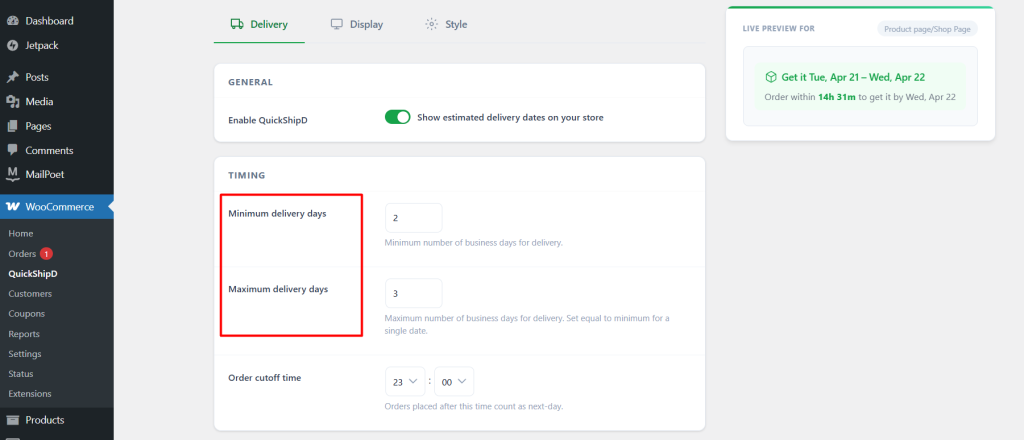
Also set your Order cutoff time and any scheduling rules (weekends, holidays) you need. Save your settings before moving on.
Step 2: Open a Product for Editing
Go to Products in your WordPress dashboard and edit any product that needs a different delivery window than your global default.
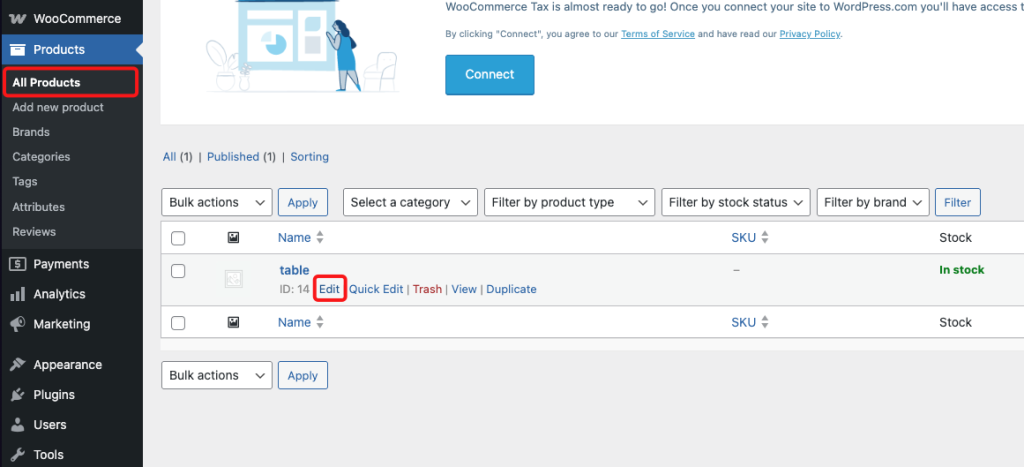
Handmade items, made-to-order products, pre-orders, or anything with a longer lead time are all good candidates for a per-product override.
Step 3: Set a Per-Product Delivery Override
Scroll down to the Product data section and click on Shipping. Look for the QuickShipD tab in the right sidebar of the product data panel.
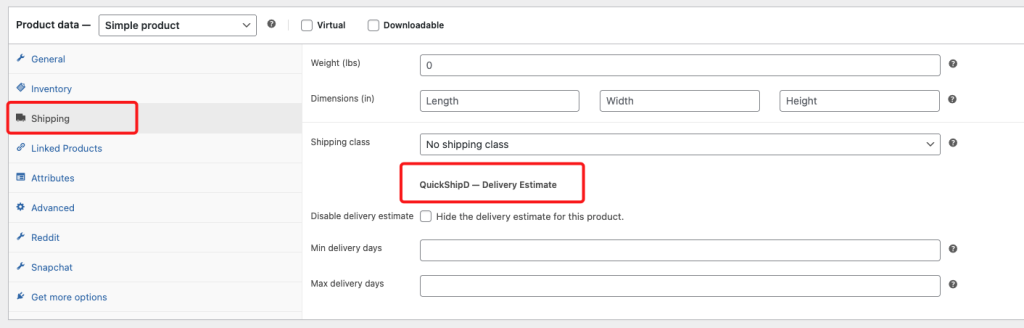
Here you can enter a custom Minimum delivery days and Maximum delivery days that apply only to this product. Leave the fields blank to use the global default. Enter values only for products where you need to override.
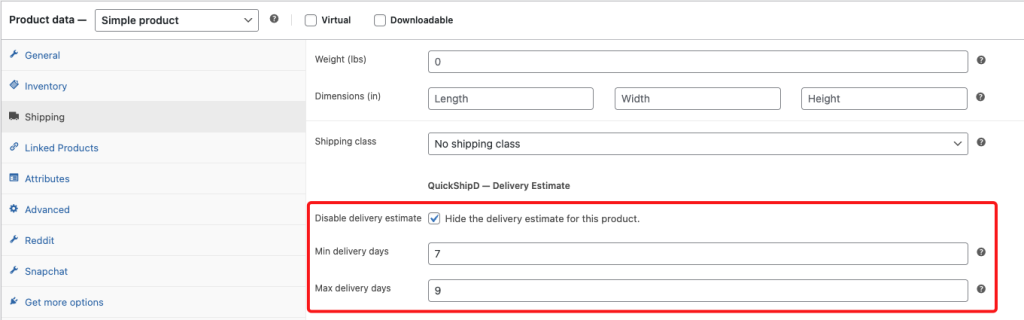
For example, if you sell a custom furniture piece that takes 7 to 9 days to produce, enter 7 and 9 here. The product page will show the correct window while all your other products continue showing the global estimate.
Click Update to save the product.
Step 4: Test the Product Page
Visit the product page on your live store. You should see the delivery estimate reflecting your per-product override, not the global default.
If you’ve also enabled Cart page display in QuickShipD’s Display settings, add the product to your cart and confirm the per-product date appears correctly there too.
If the override does not appear, check the obvious three first: you saved the product rather than just the settings, the product is not Virtual or Downloadable (WooCommerce strips shipping from those), and page caching is not serving an old copy.
What Happens When a Cart Mixes Delivery Times
This is the question most tutorials skip, and it is the one that decides whether your estimates stay honest.
QuickShipD shows each cart line item its own delivery estimate, so a customer buying a 3-day stock item and a 10-day made-to-order item sees both windows against the right products. That is the correct behaviour, because those two parcels genuinely may not arrive together.
The judgement call is what you tell them about the order as a whole. If you ship everything together in one parcel, the order arrives when the slowest item is ready — not the average, and definitely not the fastest. A cart showing “3–5 days” next to a made-to-order item you will hold for two weeks is technically per-item accurate and practically misleading.
| 🚧 IMPORTANT Decide your policy and say it plainly at checkout. Either you split the order into multiple shipments — in which case per-item dates are exactly right — or you ship complete, in which case add a line saying the order ships together when all items are ready. Silence here is what generates “where is the rest of my order?” tickets. |
Per-Product Time vs Per-Method Time
These two answer different questions and they compose rather than compete.
A per-product delivery time is your lead time — how long it takes you to get that item out of the door. It describes your workshop. A per-method time is transit — how long the carrier takes once it has the parcel. It describes the courier.
The total estimate is product lead time plus method transit time. A made-to-order item with a 7-day lead time on a 2-day express service is a 9-day estimate; the same item on a 5-day economy service is 12. That is also why per-product overrides alone are not enough once you offer express shipping — the lead time is identical whichever service the customer picks, so only the transit half changes. Our guide to WooCommerce delivery options and per-method delivery times covers that side.
Variable Products and Variations
One honest limitation worth knowing before you plan around it. The per-product override applies at the parent product level, so every variation of a variable product inherits the same delivery window.
For most stores that is fine — a t-shirt in three sizes ships identically. It matters when variations genuinely differ, for instance if one size is made to order and the rest are in stock. The practical workaround is to set the parent override to the slowest variation, or to split the genuinely different variation into its own product so it can carry its own window.
Conclusion
Now you know how to set different delivery dates per product in WooCommerce. The global settings handle your standard inventory, and per-product overrides take care of everything that ships on a different schedule.
The habit that keeps it accurate is reviewing the overrides occasionally. A supplier who got slower, or a product you now hold in stock, both make yesterday’s override wrong. QuickShipD makes it easy to show accurate delivery estimates across your entire catalog — no hacks, no workarounds.
Frequently asked questions
How do I set a different delivery time for one product in WooCommerce?
Edit the product, open the Shipping tab inside Product data, and enter a Minimum and Maximum delivery days in the QuickShipD section. Those values apply to that product only and override your global settings. Leave them blank on every other product.
Do per-product overrides affect the cart and checkout display?
Yes. If a customer adds multiple products with different delivery windows to their cart, each line item shows its own individual delivery estimate — based on whichever override applies to that product.
What delivery date applies if a cart has fast and slow items?
Each item shows its own estimate. If you ship the order complete in one parcel, the real arrival is governed by the slowest item, so say so at checkout. If you ship items separately as they are ready, the per-item dates are exactly right as shown.
Does this work with variable products?
The per-product override applies at the product level, so the value set on the parent applies to all its variations. If one variation genuinely ships on a different schedule, set the parent to the slowest variation or split that variation into its own product.
What if I leave the per-product fields blank?
QuickShipD falls back to your global delivery settings. You only need to fill in the per-product fields for products that differ from your standard processing time, which keeps maintenance down.
Is this a premium feature?
No. Per-product delivery date overrides are fully included in the free QuickShipD plugin. Several competing plugins put this behind a paid plan.
How many products can I override?
There’s no limit. You can set per-product overrides on as many products as you need, across your entire catalog.