
Want to make sure your WooCommerce delivery estimates automatically skip weekends and public holidays — without reconfiguring anything every year?
Manual workarounds are fragile. Miss a holiday and your store promises a delivery date your warehouse can’t hit.
There are two ways to do this. You can write the logic yourself in functions.php, which costs nothing and gives you complete control. Or you can use a plugin and skip the maintenance. This guide covers both — the code method first, because you should know what you are replacing before you install anything.
Option A: Skip weekends and holidays with a functions.php snippet
This is the no-plugin route. Add the following to your child theme’s functions.php (never the parent theme — a theme update will wipe it) or to a code snippets plugin. It walks forward day by day, skipping Saturdays, Sundays and any date on your holiday list, then prints the result on the single product page.
<?php
/**
 * Show an estimated delivery date on the single product page,
 * skipping weekends and a defined holiday list.
 *
 * Add to your child theme's functions.php.
 */
add_action( 'woocommerce_single_product_summary', 'qsd_show_delivery_estimate', 25 );

function qsd_show_delivery_estimate() {

	$business_days = 3; // Working days to add.

	// Fixed dates (Y-m-d) and recurring dates (m-d, any year).
	$fixed_holidays     = array( '2026-11-26', '2026-07-03' );
	$recurring_holidays = array( '12-25', '01-01' );

	$date  = new DateTime( 'now', wp_timezone() );
	$added = 0;

	// Hard stop so a bad holiday list can never loop forever.
	$guard = 0;

	while ( $added < $business_days && $guard < 365 ) {
		$guard++;
		$date->modify( '+1 day' );

		// ISO-8601: 6 = Saturday, 7 = Sunday.
		if ( (int) $date->format( 'N' ) >= 6 ) {
			continue;
		}

		if ( in_array( $date->format( 'Y-m-d' ), $fixed_holidays, true ) ) {
			continue;
		}

		if ( in_array( $date->format( 'm-d' ), $recurring_holidays, true ) ) {
			continue;
		}

		$added++;
	}

	printf(
		'<p class="qsd-delivery-estimate">%1$s <strong>%2$s</strong></p>',
		esc_html__( 'Estimated delivery:', 'your-textdomain' ),
		esc_html( date_i18n( get_option( 'date_format' ), $date->getTimestamp() ) )
	);
}
A few things worth understanding about this snippet:
wp_timezone()matters. It returns your store’s configured timezone rather than the server’s. Without it, a store on a US host serving European customers can show a date that is a full day out.- The
m-darray handles recurring holidays. Christmas and New Year’s Day never need updating. Only movable holidays like Thanksgiving go in the fixed array. - Priority 25 places the estimate after the price and before the add-to-cart button. Lower the number to move it up, raise it to move it down.
- The
$guardcounter is not decoration. If someone fills the holiday array with every weekday, an unguarded loop runs forever and takes the product page down with it.
Showing the same estimate in the cart and checkout
The snippet above only covers the product page. To repeat the estimate at checkout, hook the same calculation to a checkout action — refactor the date logic into its own function first so you are not maintaining two copies:
<?php
add_action( 'woocommerce_review_order_before_submit', 'qsd_checkout_delivery_estimate' );

function qsd_checkout_delivery_estimate() {
	echo '<p class="qsd-checkout-estimate">';
	esc_html_e( 'Your order should arrive by the date shown on each product page.', 'your-textdomain' );
	echo '</p>';
}
Where the code method runs out of road
The snippet is genuinely fine for a simple store with one dispatch schedule. It starts to hurt when you need per-shipping-method windows, an order cutoff time that rolls the estimate to the next day, per-product processing times, variable products where each variation ships differently, or the block-based cart and checkout, which ignores the classic hooks above entirely. At that point you are maintaining a small plugin inside your theme, and it is worth using an actual one.
Option B: Do it in the plugin settings
The rest of this tutorial shows how to configure QuickShipD to exclude weekends and recurring holidays automatically. It covers the edge cases the snippet does not, and takes about 3 minutes. If you want the full feature list first, see QuickShipD estimated delivery dates.
What You’ll Need
QuickShipD plugin (free)
- WordPress 6.0 or higher
- WooCommerce installed and active
- A list of your holidays or non-delivery dates (optional but recommended)
Step 1: Install QuickShipD
Go to Plugins » Add New in WordPress. Search for “QuickShipD”, install, and activate. Then navigate to WooCommerce » QuickShipD.
Step 2: Exclude Weekends from Delivery Calculations
In the Delivery tab, scroll to the Schedule section. You’ll see a toggle labeled Exclude weekends, turn this on.
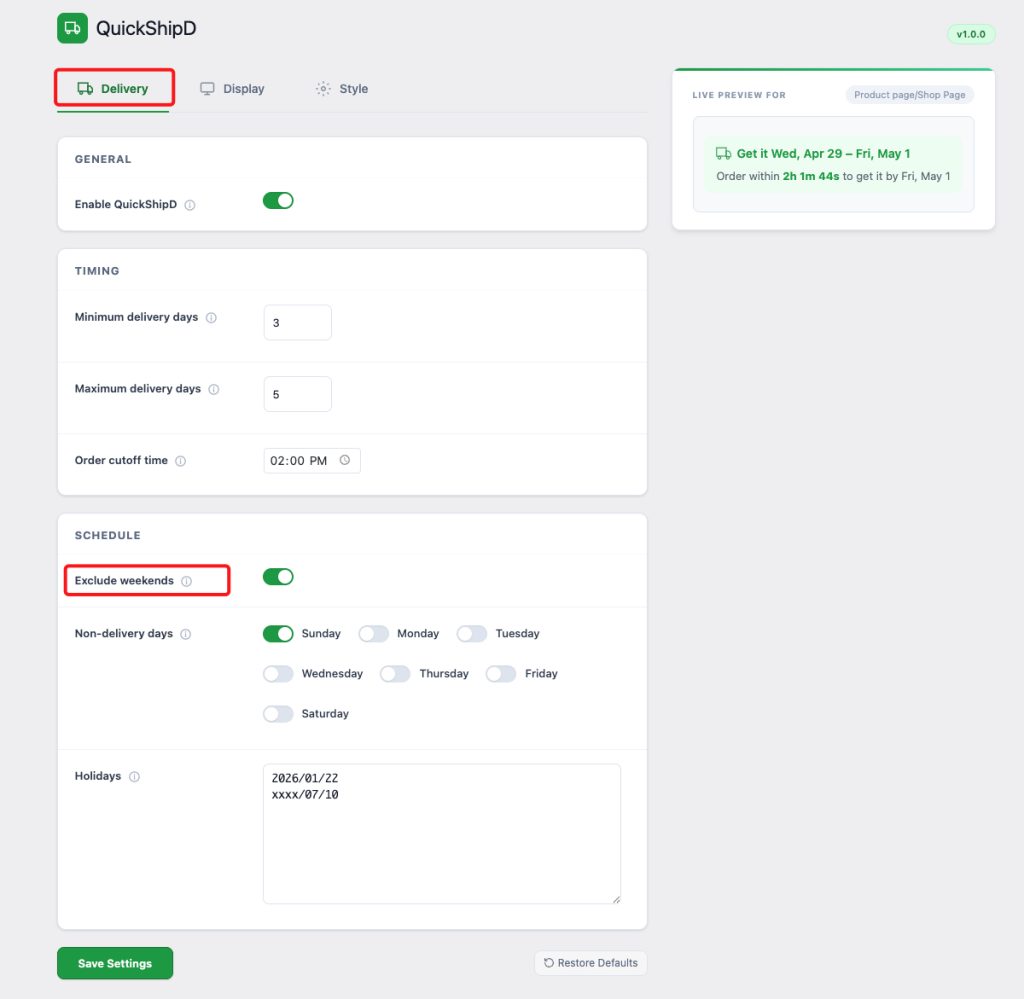
With this enabled, QuickShipD will automatically skip Saturday and Sunday when calculating delivery dates. A 3-day delivery window starting on a Friday will show Monday through Wednesday — not Saturday and Sunday.
Step 3: Block Specific Non-Delivery Days
If you don’t deliver on certain weekdays — for example, if your warehouse is closed on Mondays — use the Non-delivery days toggles. You can individually enable Sunday through Saturday.
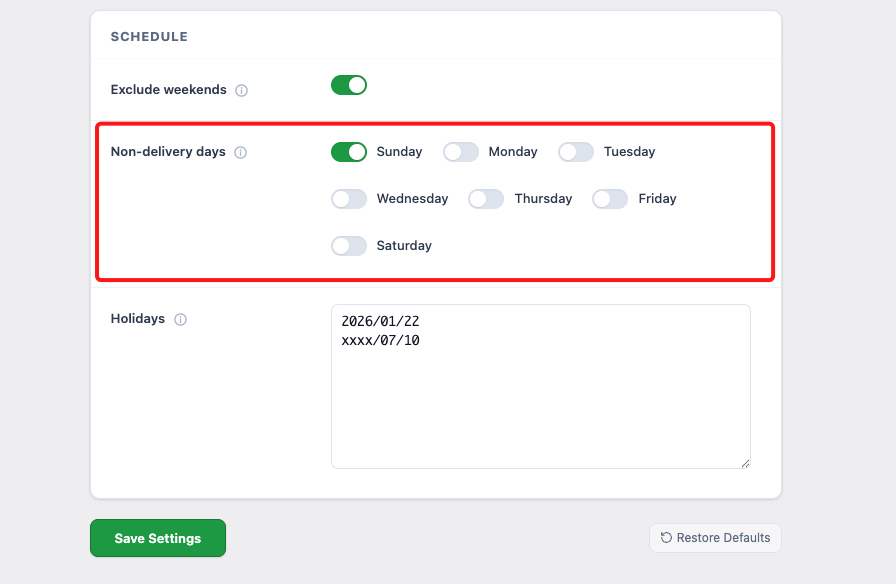
This is separate from the weekend toggle, giving you full control over which days count as delivery days in the calculation.
Step 4: Add Holidays (Including Recurring Yearly Dates)
In the Holidays field, enter your non-delivery dates one per line. QuickShipD supports two date formats:
YYYY/MM/DD — for a specific one-time date (e.g., 2026/12/25 for Christmas 2026)
xxxx/MM/DD — for a recurring yearly date (e.g., xxxx/12/25 skips December 25th every year, automatically)
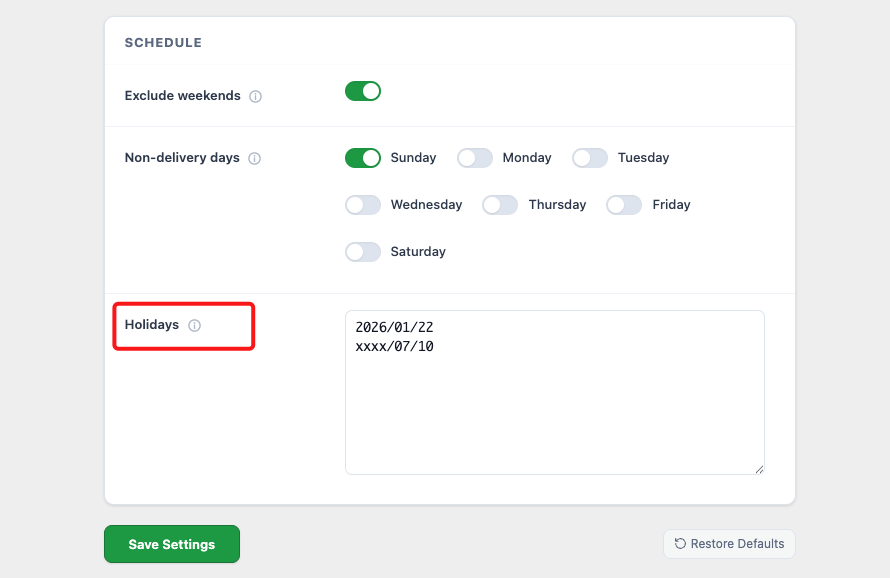
The recurring format is the real time-saver. Set it once and forget it — you never need to update your holidays year after year. It is the settings-screen equivalent of the m-d array in the snippet above.
Click Save Settings when done. QuickShipD will immediately start skipping those dates in all delivery calculations.
Frequently asked questions
Does excluding weekends affect the countdown timer too?
Yes. The order cutoff time and the delivery date calculation are both aware of your schedule settings. If a customer orders just before your cutoff on a Friday, the delivery date correctly skips the weekend.
Can I exclude specific weekdays but not the whole weekend?
Yes. The Non-delivery days section lets you toggle individual days of the week. You can exclude Monday only, or any combination of days, without touching the weekend toggle. In the code version, drop the format( 'N' ) >= 6 check and test against an explicit array of excluded day numbers instead.
What format do I use for holidays?
Use YYYY/MM/DD for a specific date, or xxxx/MM/DD for an annually recurring date. Enter one date per line in the Holidays field. QuickShipD will skip those dates every time it calculates a delivery window.
How many holidays can I add?
There is no hard limit on the number of holiday dates. For most stores, a list of 10 to 20 dates covers national holidays and business closures for the year.
Does the snippet work with the block-based cart and checkout?
No. woocommerce_single_product_summary and woocommerce_review_order_before_submit are classic-template hooks. If your store uses the Cart and Checkout blocks, the checkout snippet will not render and you will need a plugin that registers a block integration.
WRAPPING UP
Now you know two ways to make your WooCommerce delivery estimates skip weekends, non-delivery days, and public holidays: a functions.php snippet you own outright, and a settings screen that handles the edge cases the snippet does not. Both work. Pick the one that matches how much maintenance you want to carry.