
Running out of stock mid-order is frustrating enough. What makes it worse is when your store continues to show the same delivery estimate for a product that’s now on backorder, or when a restocked item still shows extended delays that no longer apply. Here’s how to keep delivery estimates aligned with your stock reality.
The Problem: Stock Status and Delivery Estimates Don’t Talk to Each Other by Default
WooCommerce manages inventory and delivery dates as completely separate concerns. Your stock level can drop to zero, trigger a ‘backorder’ status, and your delivery estimate plugin will still cheerfully display the same 3–5 day window it always has — even though the product won’t ship for three weeks.
This creates a trust problem. A customer who orders a backordered item because the estimate shows next-week delivery and then receives a ‘sorry, this is on backorder’ email will not be a returning customer.
The Clean Solution: Hide Estimates for Out-of-Stock Products
The most reliable approach is to hide the delivery estimate entirely when a product is out of stock, and replace it with honest stock status messaging. WooCommerce has a built-in out-of-stock display; pair it with hiding the delivery estimate for those products.
In QuickShipD, you can hide the delivery estimate on a per-product basis using the ‘Disable delivery estimate’ checkbox inside the product’s Shipping tab.
When you know a product is going out of stock, check this box.
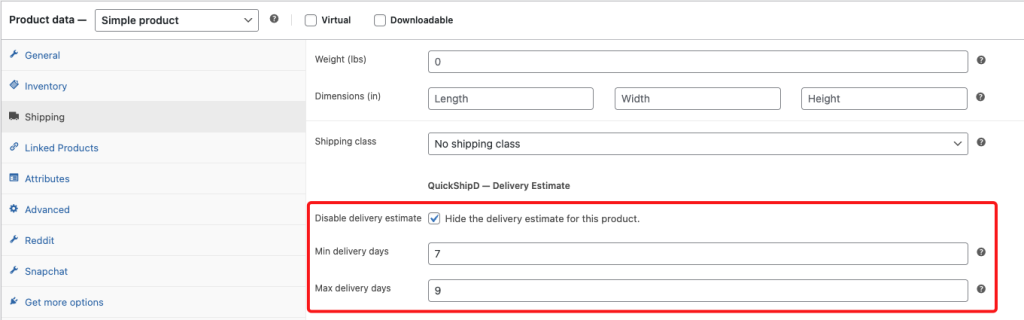
When it’s restocked and shipping normally, uncheck it. The estimate reappears immediately with your normal delivery window.
Handling Backorders With Honest Communication
If you accept backorders — allowing customers to order items that are temporarily out of stock — the delivery estimate needs to reflect the actual expected restock and dispatch date, not your standard delivery window. For products on backorder:
- Disable the standard delivery estimate using the per-product override
- Update the product description with an honest ‘Expected to ship by [date]’ note
- Re-enable the estimate and remove the note once stock is restored
This is a manual process, but it’s a fast one — both actions take under a minute in the WordPress dashboard.
When Stock Comes Back In
When a restocked item is ready to ship on its normal schedule, re-enable the delivery estimate. Because QuickShipD calculates delivery dates dynamically based on the current date and your global settings, the estimate will be immediately accurate — no need to update the dates manually.
| IMPORTANT Never show a standard delivery estimate for a backordered product. The reputational cost of a missed delivery expectation far outweighs the short-term conversion benefit of showing an optimistic date. When in doubt, hide the estimate and communicate stock status honestly in the product description. |
Delivery estimates are a trust tool. They only work as long as they’re accurate. Keeping them aligned with your actual stock status — even if that means temporarily hiding them — is the discipline that makes them effective long-term.