
Do you want to add a live countdown timer to your WooCommerce store that tells customers exactly how long they have to order for same-day dispatch?
Most stores miss this entirely and leave urgency on the table every single day. The countdown is also the one thing that turns a passive delivery date into a reason to buy now.
In this tutorial I’ll show you how to set up an order cutoff time countdown using QuickShipD — it takes about 2 minutes and requires zero code — then how to choose a cutoff you can actually hit, and how to word the message so it builds trust instead of burning it.
What You’ll Need
- The QuickShipD plugin (free — no account required)
- WordPress 6.0 or higher
- WooCommerce installed and active
- An honest answer to one question: what time does your packing actually stop?
Step 1: Install QuickShipD
In your WordPress dashboard, go to Plugins » Add New. Search for “QuickShipD”, click Install Now, then Activate. The plugin will appear under your WooCommerce menu once active.
Step 2: Set Your Order Cutoff Time
Go to WooCommerce » QuickShipD and open the Delivery tab. Scroll down to the Timing section.
Find the Order cutoff time field and enter the time of day your warehouse stops processing orders for same-day dispatch. For example, if orders received by 2:00 PM are shipped today, enter 02:00 PM.
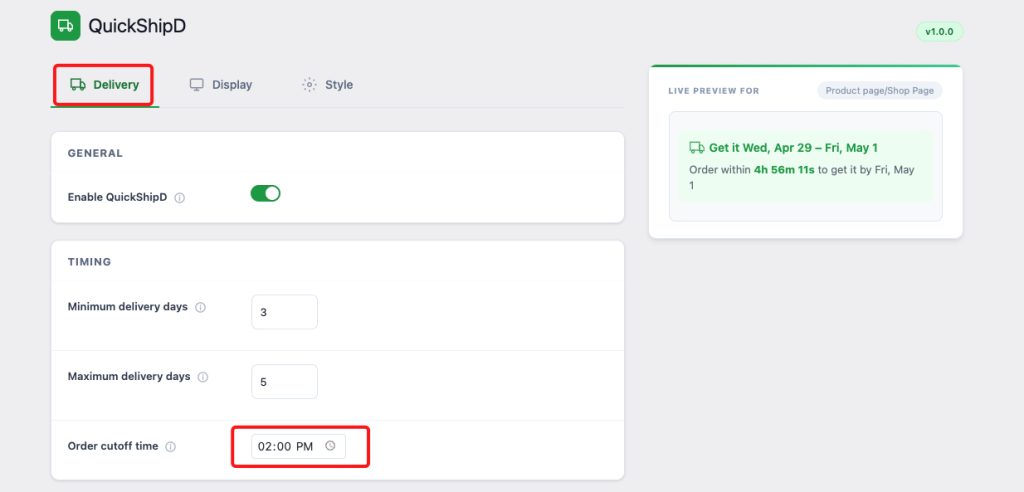
This cutoff time drives everything. Before the cutoff, the countdown shows how long shoppers have left. After the cutoff, QuickShipD automatically rolls the delivery estimate to the next business day.
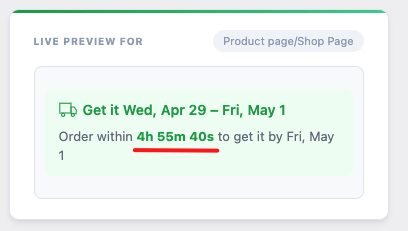
Step 3: Enable the Countdown Timer
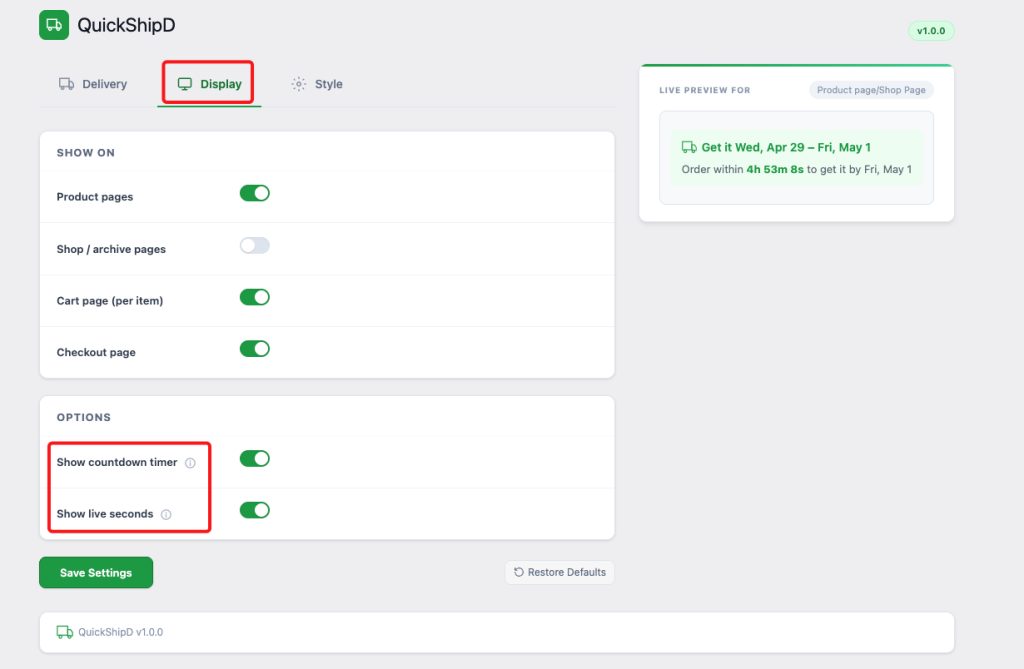
Click the Display tab at the top of the settings page. Under the Options section, make sure Show countdown timer is toggled on.
If you want the countdown to show live seconds ticking down — not just hours and minutes — toggle Show live seconds on as well. This adds an extra layer of urgency and works particularly well on high-converting product pages.
Step 4: Customize the Countdown Text
Open the Style tab. Here you’ll find the Countdown text field, which defaults to: “Order within {countdown} to get it by {date}”.
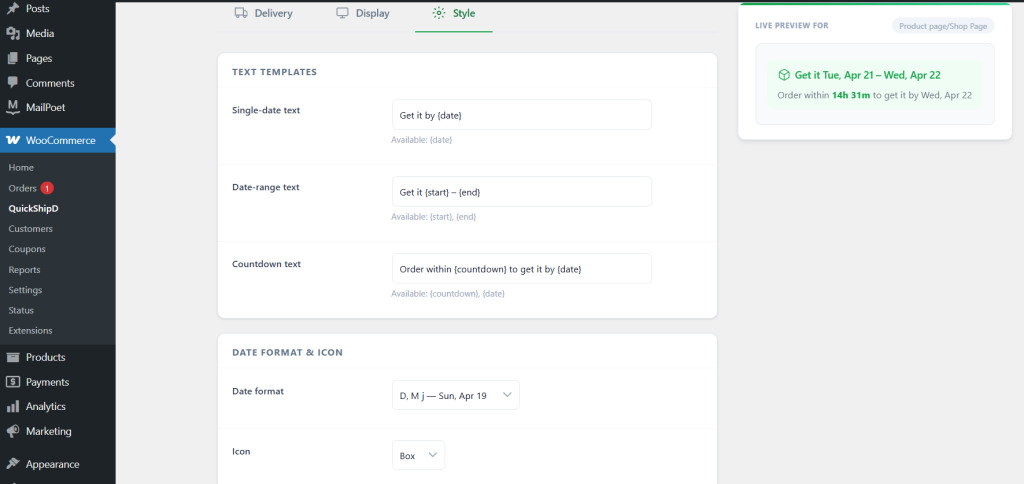
You can rewrite this to match your brand voice. The {countdown} placeholder is replaced by the live timer, and {date} pulls in the calculated delivery date. For example: “Hurry — order within {countdown} for delivery by {date}.”
While you’re on the Style tab, you can also adjust the primary color, background color, and border radius to match your store’s design. The Live Preview on the right updates in real time as you make changes.
Choosing a Cutoff Time You Can Actually Hit
This is the part that decides whether the countdown helps you or quietly damages you, and it takes more thought than the two minutes of setup above.
A countdown is a promise with a clock attached. If your timer hits zero at 2pm and you are still packing that order at 5pm, you have not created urgency — you have taught your repeat customers that the urgency is theatre. Those are the customers worth keeping, and they are the ones who notice.
Work backwards from the real constraint instead:
| Your real constraint | Cutoff to set |
|---|---|
| Carrier collects at 4pm | Around 2pm — leave time to pick, pack and label |
| You drop parcels at the post office yourself | An hour before you leave, not as you leave |
| One person packs, and they also answer support | Earlier than feels necessary. Interruptions are the constraint |
| Volume spikes on Mondays or during sales | Set for your busiest day, not your average one |
| 💡 PRO TIP Set the cutoff 30 to 60 minutes earlier than you think you need. Beating your own deadline every day costs you nothing. Missing it costs you the trust the countdown was built to create. |
Where to Show the Countdown
QuickShipD can display the countdown in three places, and each does a different job. You can enable all of them in the Display tab.
| Placement | What it does | Worth enabling? |
|---|---|---|
| Product page | Turns browsing into a decision, while the shopper is still choosing | Always — this is the one that matters most |
| Cart page | Reminds someone mid-hesitation that waiting has a cost | Yes — carts are where orders stall |
| Checkout | Reassures rather than pressures, at the point of payment | Yes, but keep the wording calm here |
One judgement call worth making deliberately: pressure works on a product page and backfires at checkout. Somebody entering their card details has already decided — a hard-sell timer at that moment reads as a trick. Keep the checkout message factual.
Countdown Copy That Works
The default text works fine. If you rewrite it, the pattern that converts is action plus consequence plus date — tell the shopper what to do, by when, and what they get.
| Use this | Not this | Why |
|---|---|---|
| Order within {countdown} to get it by {date} | Hurry! Limited time! | A real deadline beats a vague one |
| Order in the next {countdown} for dispatch today | Only a few left! | Says what you control, not invented scarcity |
| Want it by {date}? Order within {countdown} | Act now or miss out | Frames it as the customer’s goal, not your sale |
Keep the {date} placeholder in whatever you write. The date is what the shopper actually cares about — the timer only matters because it is attached to a date they want to hit.
Countdown Not Showing? Check These First
- The cutoff has already passed for today. This is the most common cause and it is not a bug. After the cutoff there is nothing to count down to, so QuickShipD shows the next available delivery date instead. Test in the morning.
- Show countdown timer is off. It lives in the Display tab, separately from the cutoff field in the Delivery tab. Setting a cutoff alone does not enable the timer.
- The product is Virtual or Downloadable. WooCommerce removes shipping from those entirely, so there is no delivery estimate to attach a countdown to.
- Page caching is serving an old copy. A cached page freezes the timer at whatever value it held when the cache was written. Exclude product pages from full-page caching, or clear the cache and retest.
- Your store timezone is wrong. Under Settings » General, check the WordPress timezone matches where you actually pack orders. A server in another region will count down to the wrong moment.
If the delivery date itself is missing rather than just the timer, that is a different problem — our guide to delivery dates not showing in WooCommerce works through the causes.
Wrapping Up
Now you know how to add a live order cutoff time countdown to your WooCommerce store. The setup takes 2 minutes — set your cutoff time, enable the timer in the Display tab, and optionally customize the text in the Style tab.
The 2 minutes is the easy part. The decision that actually matters is picking a cutoff you can hit every day, because a countdown you beat builds trust and a countdown you miss spends it. QuickShipD makes it easy to create real urgency at the product level without resorting to fake scarcity or pushy tactics.
Frequently asked questions
What happens after the cutoff time passes?
QuickShipD automatically adjusts the delivery estimate. Once the cutoff has passed, the plugin rolls the delivery window forward to the next business day. The countdown no longer shows — instead, it displays the next available delivery date.
Does the countdown timer slow down my store?
No. QuickShipD’s frontend footprint is under 1KB. The countdown timer runs with a lightweight JavaScript interval and has no measurable impact on page load times.
Can I show the countdown on cart and checkout pages too?
Yes. In the Display tab, enable Cart page (per item) and Checkout page. This keeps the urgency message alive through the entire purchase journey — which is where it matters most.
What cutoff time should I set?
Work backwards from your carrier collection or post office run, then subtract the time it takes to pick, pack and label. Set it 30 to 60 minutes earlier than feels necessary — beating your own deadline daily costs nothing, missing it costs trust.
Why is my countdown timer not showing?
Usually because the cutoff has already passed for the day, which is expected behaviour rather than a fault. Other common causes are the Display tab toggle being off, a Virtual or Downloadable product, page caching freezing the page, or a store timezone that does not match where you pack.
Do I need the Pro version for the countdown timer?
No. The countdown timer is completely free in QuickShipD. There is no Pro version — every feature is available at no cost.