
Adding a delivery estimate to your store is supposed to build trust, not create new problems. But a handful of easy-to-make mistakes can flip the entire benefit — turning a feature meant to reassure shoppers into one that makes them more suspicious than if you’d shown nothing at all.
If you’re about to set one up, or already have one live and something feels off, these are the mistakes worth checking for first.
Mistake 1: Showing an Estimate You Can’t Actually Hit
This is the most damaging one. An estimate that’s optimistic “to look competitive” sets up every order to potentially miss its promise — and a broken specific promise damages trust more than never making one.
If you’ve been consistently late against your current estimate, the fix isn’t better wording — it’s a wider, more honest window. A store that reliably beats a 5-7 day estimate builds more trust than one that regularly misses a 3-5 day one.
| 🪧 IMPORTANT If you’re not sure whether your estimate is realistic, pull your last 20 orders and check actual delivery time against what was promised. That’s your real number, not the one you’d prefer. |
Mistake 2: Forgetting Holidays and Non-Delivery Days
An estimate calculated without accounting for a public holiday or a weekend you don’t ship on isn’t just off by a little — it’s confidently wrong. The math looks correct until someone checks a calendar, and customers absolutely notice when “3 days” includes a holiday you clearly weren’t shipping on.
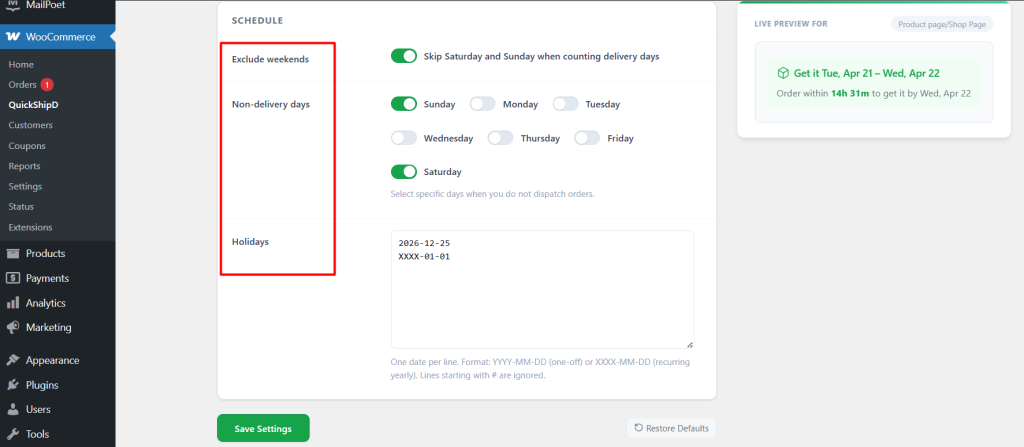
QuickShipD’s holiday list and non-delivery day toggles fix this automatically once entered — but they only work if you actually keep the holiday list current. Set a reminder at the start of each year to add upcoming public holidays.
Mistake 3: Showing the Same Estimate for Every Product, Regardless of Reality
One global delivery estimate applied to a made-to-order item, a backordered item, and a same-day item alike is a mistake that’s easy to make and expensive to leave uncorrected. Each of these needs a different number, not the store average.
- Made-to-order or custom products: use a per-product override reflecting actual production time
- Backordered or out-of-stock items: disable the estimate entirely rather than showing your standard window
- Express or same-day eligible items: override with a tighter window so the faster option actually looks faster
| 💡 PRO TIP Review your product catalog once a quarter and flag anything whose real delivery timeline has drifted from your store-wide default. It’s a five-minute audit that prevents a slow accumulation of inaccurate estimates. |
Mistake 4: Showing It in Only One Place
An estimate that appears only at checkout, after the customer has already decided to buy, delivers almost none of the conversion benefit. The product page — where the decision actually happens — is the highest-value placement, and it’s the one most often skipped.
Enable it on the product page first, then layer in shop page, cart, and checkout display as needed. QuickShipD’s Display tab makes each of these an independent toggle, so there’s no reason to leave any of them off by default.
Accuracy Before Everything Else
Most delivery estimate mistakes trace back to the same root cause: a number that doesn’t reflect reality, whether that’s an overly optimistic window, a missed holiday, or a one-size-fits-all setting applied to products that don’t fit it.
QuickShipD gives you the controls to fix all four — delivery days, holidays, per-product overrides, and display locations — from one settings screen.
Frequently asked questions
How do I know if my current estimate is too aggressive?
Check your actual fulfilment data against what you’re promising. If a meaningful share of orders arrive after the promised window, widen it rather than hoping performance improves to match.
Should every product have a custom delivery estimate?
No — only products that genuinely differ from your store-wide default need an override. Applying overrides everywhere adds maintenance work without adding accuracy.
What’s the single highest-priority fix if I can only do one?
Verify your estimate against real delivery data first. An accurate promise shown in one place beats an optimistic one shown everywhere.