
You’re weighing whether to install a delivery date plugin, and somewhere in the back of your mind is the same question that comes up with every new plugin: is this going to slow my store down? You’ve probably been burned before by a plugin that promised one small feature and quietly loaded a page builder’s worth of scripts to do it.
It’s a fair question, and it deserves a specific answer rather than a marketing one. Here’s what actually determines whether a delivery estimate plugin affects your site speed, and what to check on your own store.
What Actually Slows a WooCommerce Store Down
Page speed problems in WooCommerce almost always come from the same handful of causes: unoptimized images, too many render-blocking scripts loading on every page, heavy database queries, or plugins that load their full asset library site-wide instead of only where they’re needed.
A delivery date plugin, by nature, has a narrow job: calculate a date range from a few settings, and display it as text in a handful of specific locations. That’s a fundamentally lightweight task compared to something like a page builder or a checkout redesign plugin.
| 🎯 NOTE Not every plugin marketed as “lightweight” actually is. The only way to know for sure is to check your own site’s load time before and after activating it — don’t take it on faith, including from this article. |
How QuickShipD Is Built to Stay Out of the Way
QuickShipD’s calculation runs on simple date logic — delivery days, cutoff time, non-delivery days, holidays — and outputs plain text using your chosen wording and formatting. There’s no dependency on a separate front-end framework and nothing being loaded that isn’t directly related to displaying the estimate.
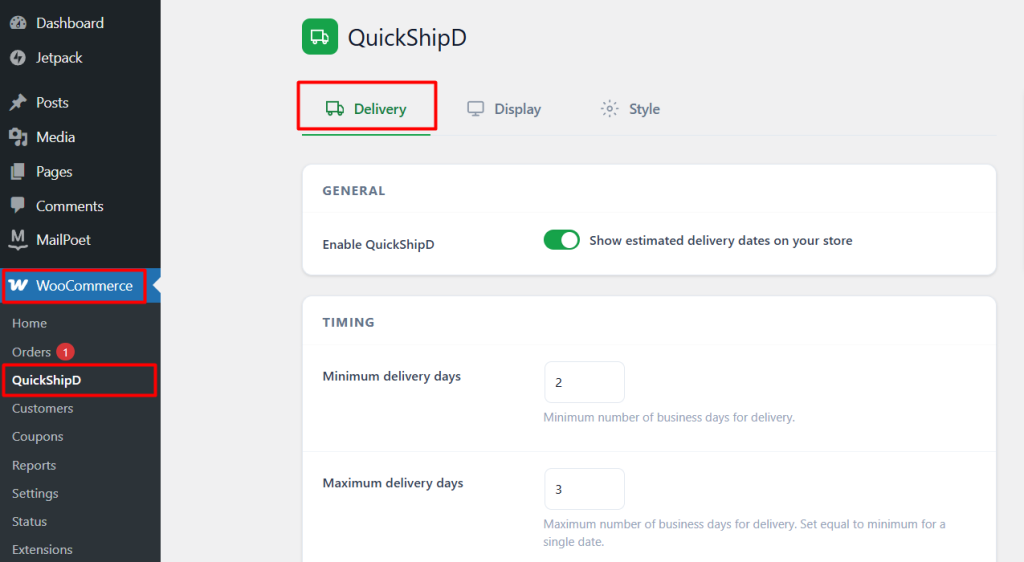
Settings live in one place — WooCommerce → QuickShipD — across the Delivery, Display, and Style tabs, and only the display logic needed for the pages you’ve actually enabled (product, shop, cart, checkout) runs on those pages.
Styling Without Extra Weight
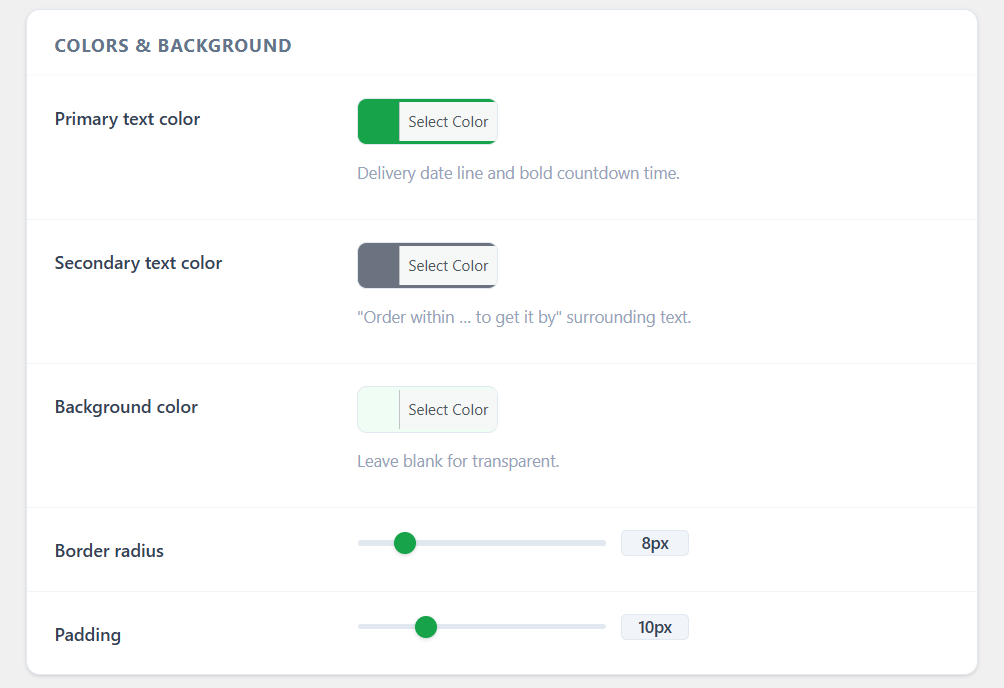
Customizing the look of your delivery estimate — text templates, colors, date format — happens through the Style tab’s settings, not by loading a separate design framework or third-party font library onto your live pages.
The honest answer: no plugin adds literally zero overhead — any code running on your page has some cost. But a plugin doing one narrow, text-based job is a very different proposition from one rendering a whole new interface, and that’s the category a delivery estimate display plugin falls into.
| 💡 PRO TIP After installing any new plugin, run your product page through a speed testing tool like Google PageSpeed Insights before and after. It takes two minutes and gives you real numbers instead of a guess. |
What Actually Matters More Than the Plugin Itself
If your store is already running slow, the biggest wins usually come from your hosting, image sizes, and how many other plugins are stacked on top of each other — not from any single lightweight feature plugin. Adding accurate delivery estimates is very unlikely to be the thing that tips a fast store into a slow one.
If you’re already dealing with speed issues, it’s worth fixing those first, then adding delivery estimates on a solid foundation rather than skipping a feature that improves conversion out of an unrelated performance concern.
A Narrow Job, Done Narrowly
A delivery estimate plugin that does one job — calculate a date, display it as text — isn’t in the same category as the plugins that actually cause noticeable slowdowns. The real test is running the numbers on your own store rather than taking anyone’s word for it.
QuickShipD’s settings are built around exactly that narrow scope, so you get the conversion benefit of accurate delivery dates without adding the kind of weight that shows up in a speed test.