
Someone lands on your product page. The price is right. The product looks exactly like what they need. They hover over Add to Cart, and then they don’t click it.
They weren’t scared off by the price, by your store. They just didn’t know when it would arrive. So they went somewhere that told them. This is one of the most common and most preventable conversion losses in WooCommerce.
Delivery Dates and Buying Intent
“Ships in 2–5 business days” doesn’t answer the question. Shoppers want to know if it arrives before the weekend, before a birthday, before they need it.
Shoppers have been trained by Amazon, ASOS, and every other major retailer to expect a delivery date before they commit. When your store doesn’t provide one, it makes your store feel less trustworthy than the ones that do.

A specific date “Get it Wed, Apr 22 – Fri, Apr 24” is a commitment. A date range with real days of the week reads as a promise. “2–5 business days” reads as a disclaimer.
How to add delivery dates to WooCommerce (free)
QuickShipD is a free WooCommerce plugin that adds accurate, dynamic delivery estimates to your product pages, cart, and checkout. Setup takes about two minutes:
- Install: search “QuickShipD” in WordPress → Plugins → Add New. No account needed.
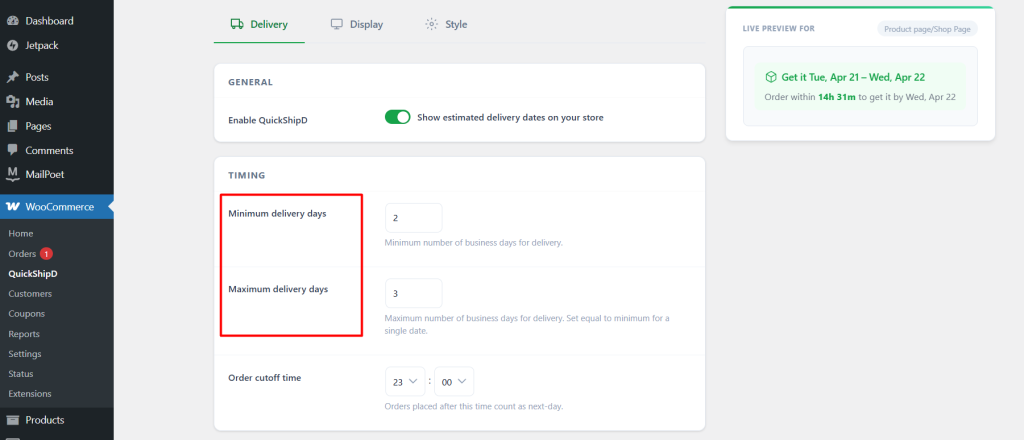
- Set your schedule: enter your minimum and maximum delivery days, your daily order cutoff time, and mark any non-delivery days or holidays.
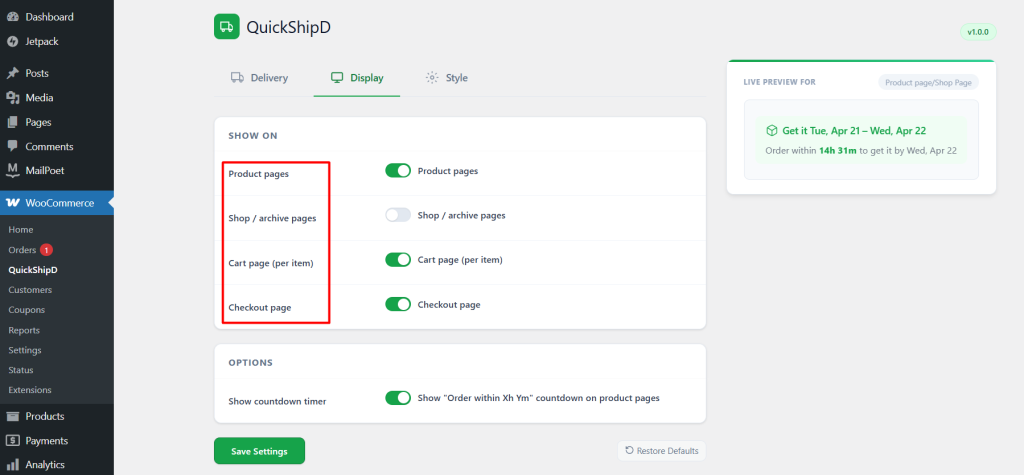
- Choose where it shows: toggle delivery dates on for product pages, cart, and checkout individually.
- Done: delivery dates appear immediately. The countdown ticks live.
No shortcodes, no developer, no configuration beyond those three settings. The plugin weighs under 1KB on the frontend and works with WooCommerce Blocks checkout, HPOS, and WooCommerce 6.0 and above.
FAQ
Does showing a delivery date actually increase sales?
The research consistently says yes. Delivery uncertainty is one of the top documented reasons for cart abandonment. Removing that uncertainty with a specific, accurate date removes a friction point that stops real buyers from completing their order.
What if my delivery times vary by product?
Use per-product overrides. Set a global default for most of your catalog, then set a different estimate on any product that ships on a different timeline — handmade items, pre-orders, bulky goods. Each product shows the right date automatically.
What if I can’t always hit the estimated date?
Use a date range rather than a single date. “Get it Wed – Fri” sets a realistic window that gives you a couple of days of flexibility while still being far more specific and convincing than “2–5 business days”.
Do I need to update the dates manually?
No. QuickShipD calculates delivery dates dynamically based on when the customer is viewing the page. You set your schedule once, processing days, cutoff time, holidays and it handles the rest automatically, including skipping weekends and recurring holidays every year.