
Yes — and they should. Waiting until the checkout page to reveal delivery information is one of the most common conversion mistakes WooCommerce stores make. By that point, the customer has already invested time selecting a product, reading descriptions, and adding to cart. Surprising them with a delivery window they didn’t expect — or simply not telling them at all — creates doubt at the exact moment you need confidence.
Showing delivery estimates before checkout isn’t just possible. It’s where the greatest conversion impact happens.
Where ‘Before Checkout’ Actually Means
There are three places a customer interacts with your store before they ever see a checkout page:
- The shop page: the product listing grid where customers browse and compare
- The product page: where they read descriptions, see images, and make the actual buy decision
- The cart: where they review their selection before proceeding to payment
Each of these is an opportunity to show the delivery estimate — and each one does a different job.
The Product Page: The Highest-Value Placement
The product page is where the purchase decision is made. A customer sitting on a product page is asking one or more of these questions: Is this what I want? Can I afford it? Will it arrive in time?
The first two are answered by your product content and price. The third is answered by your delivery estimate — or left unanswered if you don’t show one. A customer who needs something by a specific date will leave your store and go somewhere that tells them what they need to know.
QuickShipD places the delivery estimate directly on the product page, below the price and above the add-to-cart button. This is the same position Amazon uses — not coincidentally. It’s the most visually prominent location for information that influences the buy decision.
The Shop Page: Delivery as a Browsing Signal
Showing delivery estimates on your shop and archive pages — the grid view where customers browse multiple products — lets them filter by delivery time without ever needing to. A customer who sees ‘Get it Thu, May 14 – Mon, May 18’ under every product in your store immediately knows your general delivery window and can decide whether your store fits their timeline before clicking into anything.
In QuickShipD’s Display tab, the ‘Shop / archive pages’ toggle controls this. When enabled, the estimate appears under each product card in the grid — matching how Amazon and major retail sites handle it.
The Cart: Pre-Checkout Confirmation
The cart is the last stop before checkout. Showing the delivery estimate here — per line item — gives customers a final confirmation of when everything in their basket will arrive before they commit to entering payment details. It removes one more reason to hesitate.
| 🎯 KEY TAKEAWAY Show the delivery estimate on the product page first. This is where the decision is made. If you only show it at checkout, you’ve already lost the customers who left because they didn’t know when it would arrive. |
QuickShipD lets you enable estimates independently on product pages, shop pages, the cart, and checkout — all from the Display tab.
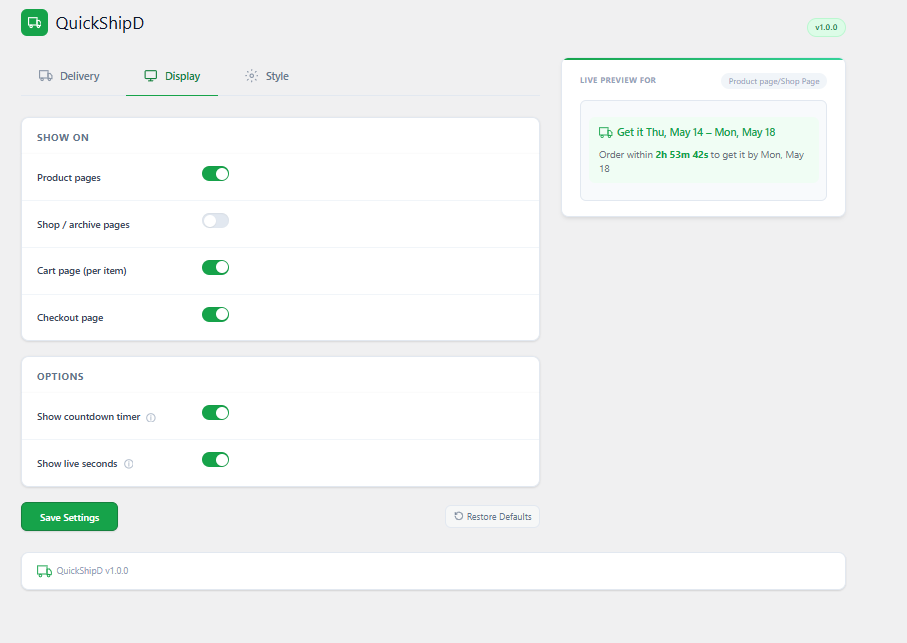
Turn on the locations that matter most for your customers, and the estimates appear automatically with no additional configuration.