
Reading through scattered documentation to figure out what a plugin actually includes gets old fast. If you just want the full picture of what QuickShipD does before you install it, here’s everything laid out in one place, organized by the tab it lives in.
Delivery Tab: The Calculation Engine
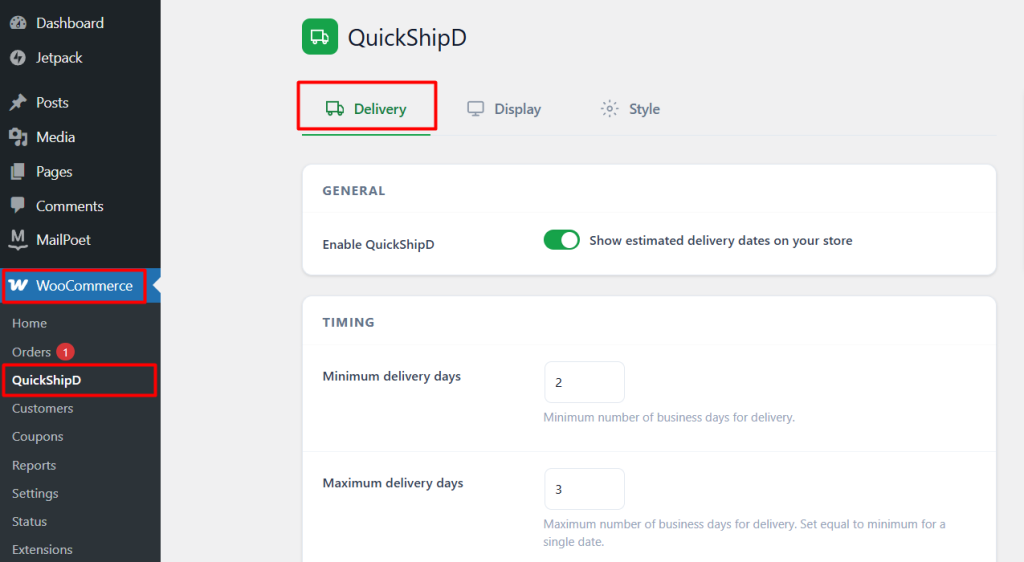
This is where you tell QuickShipD how your store actually ships, and it calculates every delivery estimate from these settings.
- Minimum and maximum delivery days: the core window used to calculate every estimate store-wide
- Order cutoff time: the daily deadline for same-day processing, with orders after it calculated from the next business day
- Exclude weekends toggle: automatically skips Saturday and Sunday in date calculations
- Non-delivery days: individual weekday toggles for any day you don’t dispatch
- Holiday list: specific dates excluded from delivery calculations, supporting recurring annual entries
Display Tab: Where the Estimate Shows Up
Each location is an independent toggle, so you control exactly where customers see the estimate.
- Product pages: displayed above the add-to-cart button, the highest-conversion placement
- Shop and archive pages: shown under each product card in grid view
- Cart page: displayed per line item
- Checkout page: reinforces the estimate at the final step
- Countdown timer: an optional “order within Xh Ym” urgency line tied to your cutoff time
| 💡 PRO TIP Turn on the product page display first if you’re testing the feature for the first time — it’s where the largest share of the conversion benefit happens, before you commit to enabling every location. |
Style Tab: Making It Look Like Yours
- Text templates: separate editable wording for single-date, date-range, and countdown scenarios, with variables that fill in automatically
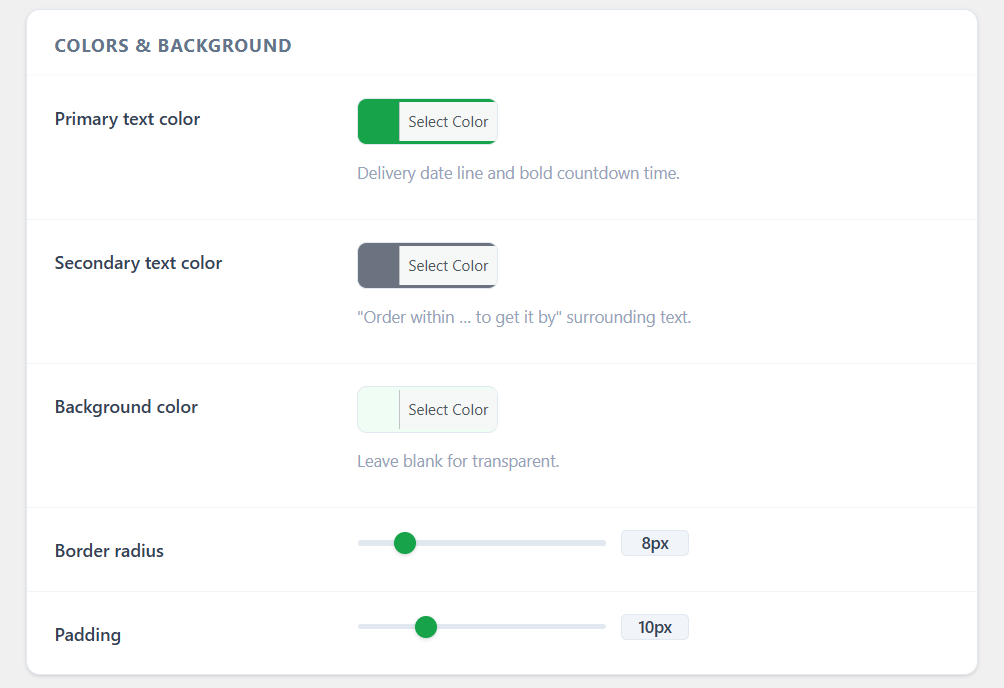
- Colors: primary text, secondary text, and background, matched to your theme
- Date format: choose between spelled-out and numeric formats
- Live preview: see your changes rendered in real time before saving
Per-Product Overrides
Inside each product’s Shipping tab in the WooCommerce editor, you can override the global minimum and maximum delivery days for that specific product, or disable the estimate entirely for items that are backordered, made-to-order, or otherwise not covered by your standard timeline.
| 🎯 NOTE This is a complete picture of the core plugin’s settings, not a promise that every feature listed here is available in every version. Check the current plugin listing for the most up-to-date breakdown of what’s included in free versus paid tiers. |
Everything, Organized by Where You’ll Find It
QuickShipD’s feature set breaks down cleanly into calculation (Delivery tab), placement (Display tab), appearance (Style tab), and exceptions (per-product overrides). Most stores only need to touch the first two to get real value.
Install it and you’ll see the full settings screen laid out exactly as described here.